
Upgrading to Windows 11 brings a fresh interface, improved security, and enhanced features, but it also carries hidden risks—most notably data loss during Windows 11 Upgrade. For many users in Wellington, NZ, what seems like a routine OS update can quickly turn into a stressful data-recovery scenario.
Whether it’s critical work documents, family photos, or system settings, losing this data can disrupt your workflow and cost time, effort, and money.
Fortunately, understanding the most common mistakes that lead to data loss can help you safeguard your files and enjoy a seamless upgrade experience. Professional tech supports can you your business to ensure smooth transitions, emphasizing preparation and proactive measures to prevent data loss.
Understanding the Risk of Data Loss During Windows 11 Upgrade
Upgrading an operating system is not just a click-and-go task. Even with Microsoft’s safeguards, several factors can unexpectedly compromise your data. Recognizing these risks upfront allows you to take proactive measures and protect your important files.
Key risks include:
- Power interruptions or hardware failures: Unexpected shutdowns during the upgrade can corrupt system files or erase personal data.
- Software conflicts: Certain applications or outdated drivers may clash with Windows 11, causing errors or file loss.
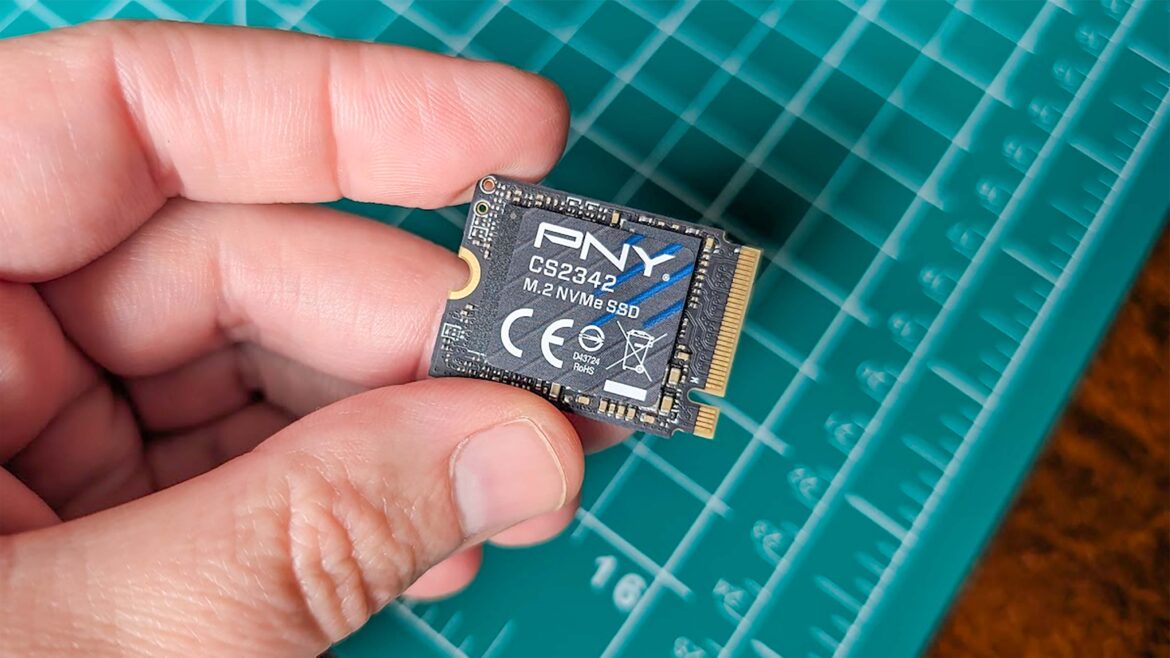
- Storage issues: Limited free space, failing SSDs, or incompatible storage devices can lead to incomplete upgrades and data corruption.
Understanding these risks is the first step to preventing irreversible damage. Preparation and careful planning significantly reduce the chances of encountering data loss during Windows 11 Upgrade.
The Most Common Mistakes That Lead to Data Loss
While risks exist, most data loss during a Windows 11 Upgrade occurs due to preventable mistakes. By knowing what not to do, users can dramatically improve the chances of a smooth transition. The following sections highlight the top mistakes users often make, explain why they happen, and provide actionable strategies to avoid them.
Overlooking Backup Strategies
One of the most frequent mistakes during a Windows 11 Upgrade is skipping proper backups. Many users assume that the upgrade process automatically protects their files, but unexpected errors, power failures, corrupted downloads, or software conflicts can wipe important data.
How to Avoid This Mistake
- Full System Backup: Use an external drive or cloud storage to save all documents, images, and important application data.
- Cloud Backup: Platforms like OneDrive or Google Drive provide continuous protection, but verify that files are fully synced before starting the upgrade.
- Follow the 3-2-1 Rule: Keep three copies of your data on two types of media, with one off-site backup.
Always back up data before Windows 11 upgrade it’s the single most effective safeguard against unexpected loss. Ask yourself: Would losing my current work set me back hours or days? If the answer is yes, a backup is non-negotiable.
Ignoring Compatibility Checks
Upgrading a device that doesn’t meet Windows 11 requirements can cause silent issues, including corrupted files or failed installations. Even seemingly minor incompatibilities like outdated drivers or missing TPM support can trigger data loss during Windows 11 Upgrade.
Best Practices
- Run the PC Health Check tool to verify your device meets all requirements.
- Update storage drivers, graphics drivers, and firmware to their latest versions.
- Confirm that peripheral devices are supported and have updated drivers to prevent conflicts.
Neglecting this step is a common oversight. Ensuring compatibility first prevents avoidable headaches and reduces the risk of data corruption.
Failing to Monitor the Upgrade Process
Many users start a Windows 11 Download and then leave their devices unattended. While upgrades often proceed smoothly, interruptions such as sudden power loss or network failure can result in incomplete installations and data issues.
Practical Tips
- Keep your device plugged into a stable power source.
- Ensure a reliable internet connection throughout the Windows 11 Download process.
- Monitor the upgrade and address prompts immediately.
A hands-off approach may seem convenient, but active monitoring significantly reduces the chances of data loss during the Windows 11 Upgrade.
Mismanaging External Devices and Cloud Sync
External drives, USB devices, and even active cloud syncing can interfere with the upgrade process. There have been instances where SSDs became temporarily inaccessible or files on synced drives were overwritten during Windows 11 installations.
What to Do
- Disconnect all unnecessary external devices before upgrading.
- Pause cloud sync services to prevent conflicts.
- Validate that critical files are available locally on your system.
By taking these precautions, you minimize disruptions and prevent file loss that’s often unexpected and frustrating.
Overlooking Post-Upgrade Verification
Even if the upgrade seems successful, hidden issues may linger. Files might be misplaced, shortcuts broken, or applications malfunctioning. Many users only discover the problem days later when trying to access critical data.
Post-Upgrade Checklist
- Verify that all documents, images, and videos are accessible.
- Test key applications and ensure they open without errors.
- Check for missing settings or system preferences and restore from backup if necessary.
This step ensures that your system is truly ready for daily use, eliminating surprises after the fact.
Professional support for Windows 11 upgrade with Data Safety
Upgrading to Windows 11 can be tricky, and even minor errors can result in data loss during the Windows 11 Upgrade. For users and businesses in Wellington, NZ, having access to reliable support can make a real difference.
Providers like Tech On Road offer on-site data recovery and PC repair services, helping ensure that important files are backed up, system compatibility is verified, and any issues that arise during the upgrade are resolved quickly. With this kind of practical, hands-on assistance, you can approach your Windows 11 upgrade with confidence, knowing your data is protected.
Taking Control of Your Windows 11 Upgrade
Upgrading to Windows 11 should be exciting, not stressful. By understanding the common data loss mistakes during Windows 11 Upgrade, actively preparing your system, and employing trusted guidance, you can ensure a smooth transition.
Consider each step carefully, ask yourself reflective questions about your files and workflow, and take action proactively. A safe, seamless upgrade is always within reach when preparation and vigilance go hand in hand.